TL;DR:
Sales Navigator splits its filters into two groups. Lead filters (more than 30 of them) narrow down individual people. Account filters (16 of them) narrow down companies before you look at a single person inside them.
- Sales Navigator offers roughly double the filter count of basic LinkedIn search, which caps out around 18.
- Lead filters sit across categories like keyword, company, role, personal, buyer intent, best path in, recent updates, and workflow.
- Account filters cover company keywords, company attributes, spotlights (growth and intent signals), and workflow.
- Function, Seniority Level, and Technologies Used get guessed by LinkedIn's algorithm instead of stated as fact. Treat them with caution.
- Boolean search (AND, OR, NOT, and quotation marks) combines filters into one precise string. That beats running five separate searches.
LinkedIn Sales Navigator advanced search filters are the difference between a prospect list that converts and one that just looks full.
A sales development rep (SDR) can build a two hundred person list from a couple of basic filters. Two weeks into outreach, forty of those people have already left the company the filter said they worked at. The list fell apart before the first email went out.
Sales Navigator hands you far more filters than the free version of LinkedIn search. Knowing which ones earn a spot in your search matters more than having access to all of them. Some quietly waste your time. Here's the full breakdown. Lead filters, account filters, the filters worth skipping, and how to stack the rest with Boolean search.
Why Basic LinkedIn Search Doesn't Cut It for Prospecting
Regular LinkedIn search gives you around 18 filters. Sales Navigator gives you more than 30 for leads and 16 for accounts. LinkedIn adjusts the exact count often enough that I wouldn't bet on it staying fixed for long.
That gap matters once you have an actual ideal customer profile (ICP). A rough sense of who you're looking for isn't enough. An ICP is the mix of company size, industry, role, and buying signal that predicts who's likely to buy. Basic search can't filter on nearly any of that. Sales Navigator can.
One mix-up worth clearing up: Sales Navigator is not the same product as LinkedIn Premium. Premium serves job seekers and networking. Sales Navigator exists to find and track B2B prospects.
This is also where LinkedIn prospecting stops being a numbers game. You're not trying to message more people. You're trying to message the right two hundred instead of the wrong two thousand.
LinkedIn Sales Navigator Lead Search Filters
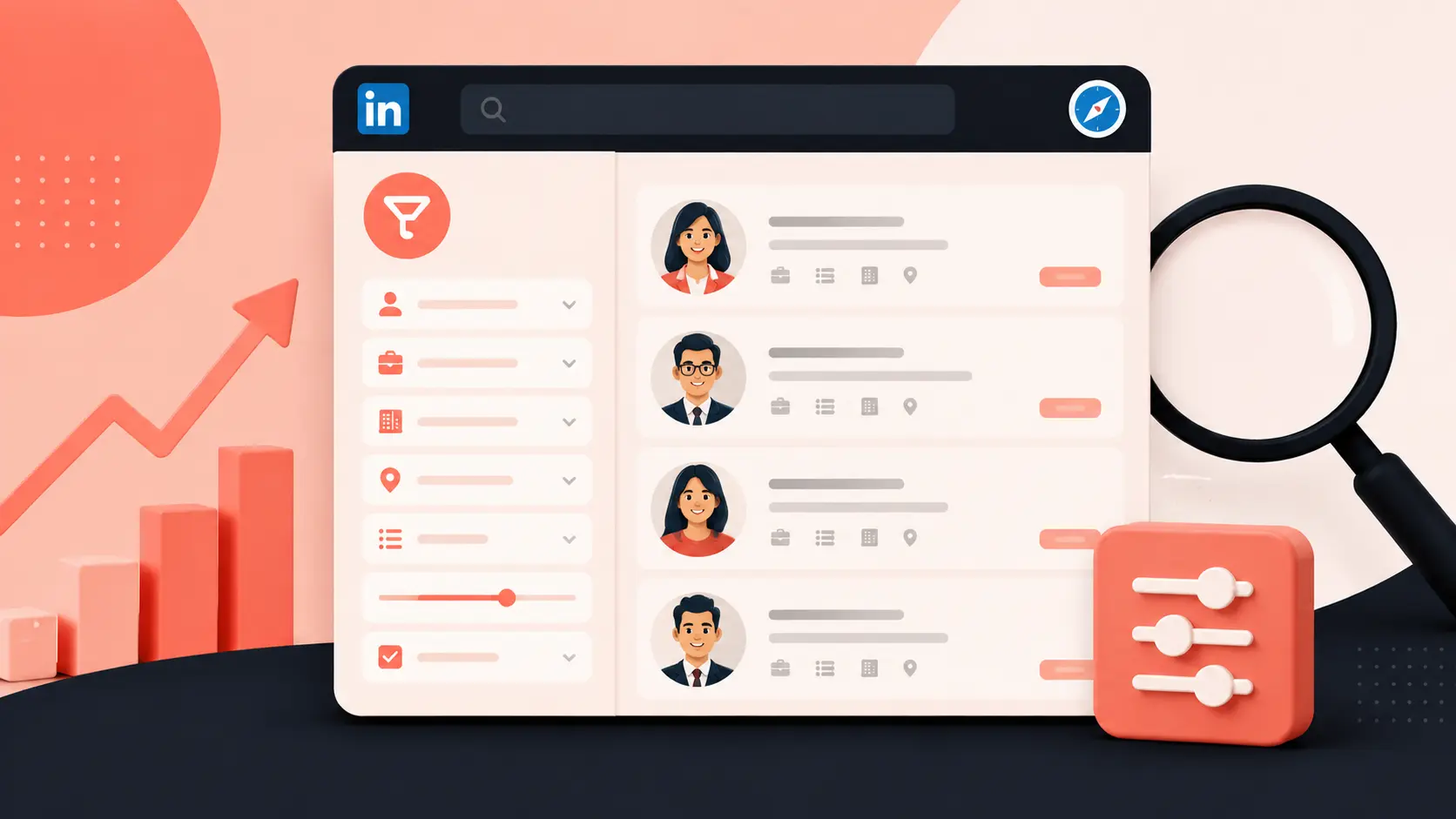
Lead filters live under "Lead Filters" on your Sales Navigator homepage. They're organized into eight groups.
1. Keyword and Company Filters
The keyword filter searches the entire profile: headline, job title, about section, skills, schools, and recommendations. That's wider than a lot of people expect.
The same filter also picks up context you didn't mean to target. Type "revenue operations." It will also match a headline that reads "recovering revenue operations manager, now happily in sales." The filter can't tell a fit from a joke bio.
Five company filters sit under this group:
- Current Company: who works there right now
- Company Headcount: filtered by the size a company entered on its own LinkedIn page, not always the actual headcount
- Past Company: useful for finding alumni when you combine it with Current Company
- Company Type: public, private, non-profit, and so on
- Company Headquarters: the location of the employer, not the lead
On Company Headcount specifically, double check it against reality. A company can show a headcount from two years ago (assuming anyone on their team remembers to update the page). Non-digital businesses often have staff who never bothered to make a LinkedIn profile at all.
2. Role and Seniority Filters
Six filters live here:
- Function
- Current Job Title
- Seniority Level
- Past Job Title
- Years in Current Company
- Years in Current Position
I'd skip Function and Seniority Level. Both are LinkedIn's own algorithmic guess based on job titles. The guess is wrong often enough that it's not worth the risk. A person with three open roles on their profile can end up with three different guessed functions. A founder with the title "Co-Founder" can even get classified as entry level. The algorithm doesn't know what to do with a title that unusual.
Current Job Title is more reliable, with one catch. This filter only looks at experiences marked "Present." Plenty of people forget to close out a past role when they start a new one. That leaves ghost matches in your results: people who technically still show as employed somewhere they left months ago.
Years in Current Company is worth a second look for one case. Target founders or executives in their first year at a new venture. That window usually lines up with budget decisions and new vendor evaluations.
3. Personal, Geography, and Buying Signal Filters
Eight personal filters exist:
- Geography
- Industry
- First Name
- Last Name
- Profile Language
- Years of Experience
- Groups
- School
A couple are worth calling out. Geography filters by where the lead lives, not where their employer sits. Industry filters by what the lead picked on their own profile, not their company's listed industry. That trips people up constantly.
Reps underuse Groups. If someone is active in a niche industry group, you have a natural opener. That beats "I saw your profile" every time.
Buyer intent filters sit in a separate group, and this is where buying signals show up inside LinkedIn itself:
- Account has buyer intent: flags accounts already showing engagement
- Category interest: matches leads to product categories based on group activity and profile data
- Following your company: a soft but real signal
- Viewed your profile recently
LinkedIn also added a filter that shows who viewed your company page in the last 90 days. This filter sits under Buyer Intent and only surfaces people who opted into being visible. Still, it's the first time a company level visit turns into a name you can act on.
4. Best Path In and Recent Updates Filters
Best Path In helps you find a warm route into an account instead of going in cold. Five filters live here:
- Connection
- Connections Of
- TeamLink Connections Of
- Past Colleague
- Shared Experiences
TeamLink is only available on the Advanced plan and above, and it's a real advantage for teams. TeamLink surfaces leads your teammates can introduce you to. That's a faster way in than trying to get past the gatekeeper on a cold call.
Recent Updates covers three filters:
- Changed jobs in the last 90 days
- Posted on LinkedIn recently
- Mentioned in the news in the last 30 days
The Changed Jobs filter is one I'd put near the top of your list. People new in a role tend to want to prove themselves fast. That makes them more open to new tools than someone settled in the same seat for five years. Pair it with tracking job changes more broadly. You get a steady stream of decision makers who just arrived.
Once you've found the right lead, InMail is how you reach them without a mutual connection. Each plan comes with a limited pool of InMail credits. Be selective about who gets one.
5. Workflow Filters
Six filters sit here:
- Persona
- Account Lists
- Lead Lists
- People in CRM
- People You Interacted With
- Saved Leads and Accounts
Persona is worth setting up if you sell to more than one buyer type. It lets you tag leads by a buyer persona you've defined. Stack that tag with function, seniority, title, and geography, and a search narrows fast.
Persona and Account Lists both get more useful once you're mapping buying groups inside an account. That beats chasing one contact. B2B deals rarely close through one person. Multi-threaded selling, working a few stakeholders at once, tends to close faster than a single relationship does. Tools that help you identify who's in the buying group pair well with this filter.
People in CRM only works on Advanced Plus. This filter also needs your customer relationship management (CRM) tool connected to Sales Navigator. If your CRM data is messy going in (and on plenty of teams it is), this filter just surfaces the mess faster.
LinkedIn Sales Navigator Account Search Filters
Account filters live under "Account Filters" and cover four categories.
1. Company Attribute Filters
Ten filters sit here:
- Annual Revenue
- Company Headcount
- Company Headcount Growth
- Headquarters Location
- Industry
- Number of Followers
- Department Headcount
- Department Headcount Growth
- Fortune Ranking
- Technologies Used
A few of these deserve honest caveats.
Annual Revenue is an estimate, built from public web data and extrapolation. The number can sit a full tier below what a company has already announced in its own funding news. Treat it as a rough sort, not a precise number.
Department Headcount is a strong filter if you sell into a specific function. Set a minimum number of people in, say, sales or engineering. That tells you something about deal size before you ever open a profile.
Technologies Used is the one to trust least. LinkedIn doesn't publish how it detects a company's stack, and the listed technologies often don't match what's live on a company's site. This is where firmographic and technographic data split apart. Firmographic filters, like headcount and revenue, tend to hold up. Technographic guesses often don't. If technology fit drives your targeting, skip this filter. Verify it against a dedicated technographic data source instead.
2. Spotlight Filters
Four filters live here:
- Job Opportunities
- Recent Activities
- Connections
- Buyer Intent
Job Opportunities is a quiet growth signal. A company posting open roles usually has budget moving somewhere, which often extends to new tools and vendors too.
Recent Activities covers two things worth separating. Leadership changes flag new executives. They tend to want to make their mark early. That makes them more open to new vendors than someone settled in the seat for years. Funding events flag companies that just raised money and are about to spend some of it. Both are strong entry points for buying triggers you can reference directly in a first message.
3. Workflow Filters for Accounts
Three filters round out the account side:
- Companies in CRM (Advanced Plus only, same CRM connection requirement as the lead side)
- Saved Accounts
- Account Lists
Account Lists is where the account and lead sides connect. Build a list of target accounts here. Then jump to the lead side and apply that same list under Workflow filters. That pulls up everyone working at those companies. Add a title filter on top. You've gone from "companies we want" to "people to contact" in two steps.
The Filters I'd Think Twice About Using Alone
A quick, honest list. None of these are useless. They're just less reliable than they look, and I wouldn't build a search around them without backup.
- Function: algorithmic guesswork, not a stated fact
- Seniority Level: same problem, guessed from title alone
- Technologies Used: no published methodology, spotty accuracy in practice
- Annual Revenue: a rough estimate, not a verified figure
- Profile Language: plenty of non-native speakers default to English anyway
Use these as a light filter or a tiebreaker, not the backbone of a search. Job Title, Geography, Company Headcount, and Changed Jobs consistently hold up better in practice.
Stacking Filters with Boolean Search and Saved Searches
Boolean search turns the keyword and title fields into something closer to a real query language. It works with:
- AND: both terms must appear
- OR: either term is enough
- NOT: excludes a term entirely
- Quotation marks: matches an exact phrase
- Parentheses: groups logic together
A search like ("Head of Sales Ops" OR "VP Sales Operations") AND ("scaling" OR "hypergrowth") NOT ("agency" OR "consultant") gets you closer to a real title cluster than any single filter could on its own.
Once a search is worth repeating, save it. Sales Navigator lets you save up to 50 lead searches and 50 account searches. You get a weekly alert whenever new people or companies match. That turns a one-time search into an ongoing pipeline of fresh leads. You don't lift a finger after the setup.
Two workflow tricks worth knowing:
- Account-based search: build an account list first, then apply it under Workflow filters on the lead side, then layer a title filter on top to surface decision makers inside those specific companies.
- Blacklists: add current clients and competitors to an account list. Then use the Exclude option under Workflow filters. Your searches stop surfacing people you already work with, or shouldn't be pitching at all.
One more thing before you go all in on a single search. LinkedIn caps how many results and saved searches you get per plan tier. Check your limits before you build a workflow that assumes unlimited room.
Turning a Filtered List into a Working Pipeline
A well-filtered list is a starting point, not a finished asset.
Here's the honest gap. Sales Navigator is strong at narrowing who to look at. Confirming the data is current the moment you look at it is the weaker part. Job titles go stale. Phone numbers are rarely on a LinkedIn profile at all. A filter saying someone works somewhere doesn't mean their direct dial number exists anywhere you can reach it.
This is the point where a lot of reps go wrong. They hand a filtered list straight to a sequence tool without checking who's still in the role. A pass against real-time verified contact data, whether that's ours at SMARTe or another provider, closes that gap early. Do it before your first message goes out, not after your reply rate tells you something's wrong.
The same goes for CRM sync. If you're pulling a filtered list into a CRM, enrich those records with verified emails and mobile numbers first. Skip that step and a bad bounce rate quietly kills a good list's reputation.
Using AI to Build Better Filter Strings
Building a Boolean string by hand takes longer than it should. A large language model handles the logic behind AND, OR, and NOT well.
The process I'd recommend:
- Write out your target role, company type, size range, location, and anything you want excluded, in plain language.
- Ask the model for two or three Boolean variations, not just one. Ask it to explain what each variation targets differently.
- Test each string in Sales Navigator and note which one returns the tightest, cleanest results.
- Feed the actual results back and ask for a refined version.
That loop turns filter building into minutes instead of a half hour of manual trial and error.
Account IQ, available on Advanced and Advanced Plus plans, takes this further. It sits on top of company pages, surfacing pitch angles, revenue estimates, hiring trends, and an org chart snapshot in one place. That gives you buying group intelligence without digging through five separate tabs.
Some teams already connect an AI assistant to their data through something like Model Context Protocol. For them, a filtered Sales Navigator list becomes an input, not the last step in the process.
The Real Skill Isn't the Filters
Sales Navigator's filters are only as good as the judgment behind them. Anyone can turn on every option. The list that comes out can still match on paper and not be worth calling.
The reps who get real pipeline out of Sales Navigator treat the filters as a starting sort. Not a finished list. They stack a few reliable filters and skip the shaky ones. They verify what the data says once it's narrowed down. Only then do they start writing.
See how SMARTe finds verified mobile numbers in your target accounts.